


The Settings app menu of Microsoft Windows 10 contains dozens of configuration screens that allow users to make changes to how the operating system works. Under normal circumstances, navigating through the labyrinth of menus is efficient enough for the occasional configuration change, but there is another way.
Must-read Windows coverage
- CrowdStrike Outage Disrupts Microsoft Systems Worldwide
- 10 Best Project Management Software for Windows in 2024
- Windows 10 Extended Security Updates Promised for Small Businesses and Home Users
- Securing Windows Policy
By combining the run dialog box and a specific set of commands known as Uniform Resource Identifiers (URI), users can skip a multitude of menu selections and corresponding mouse clicks to reach their configuration setting destination practically instantantly. The key is knowing the right Settings URI.
This how-to tutorial shows you how to combine the run dialog box and a list of available URIs to jump to specific configuration screens in Windows 10.
Disclosure: TechRepublic may earn a commission from some of the products featured on this page. TechRepublic and the author were not compensated for this independent review.
Use URI commands to quickly locate settings pages in Windows 10
The Settings app in Windows 10 is laid out as a series of categories and sections. Using the menu interface, users drill down until they find the page that contains the settings they are looking to change. Using the right URI, a user can skip the menu system completely and jump directly to the setting for which they are looking.
Note, for this example we are using the run dialog box, but the URI commands can also be entered into a command prompt or even the address bar, if it is active on your Windows 10 desktop.
SEE: Windows 10 Start menu: From angst to answers (TechRepublic Premium)
To open the Settings main page, for example, press the keyboard combination Windows key + R to open the run dialog box and enter this URI: “ms-settings:” Ignore the quotes, as shown in Figure A.
Figure A
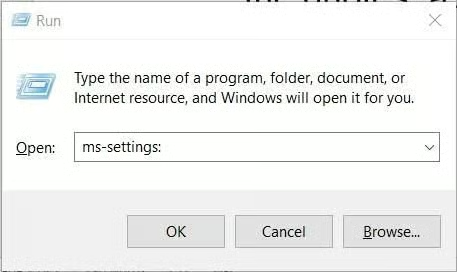
Pressing the Enter or clicking OK, will open the main Settings screen shown in Figure B.
Figure B
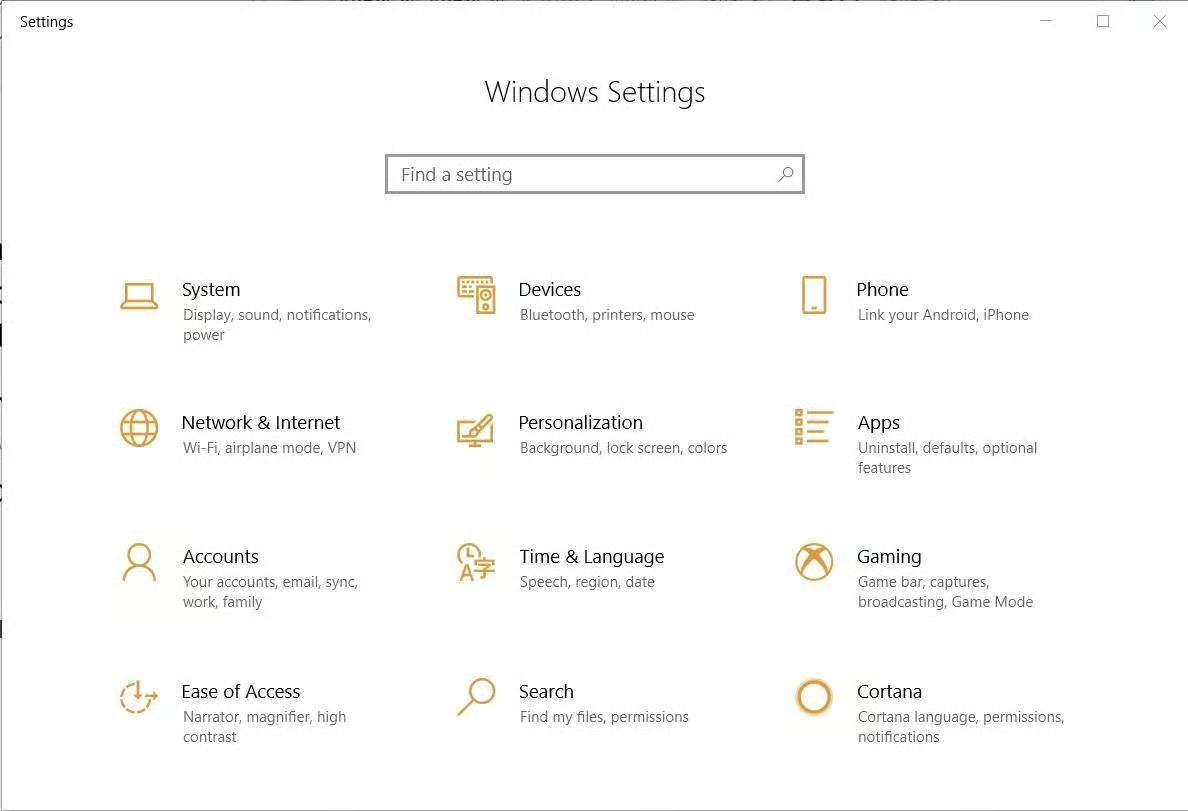
The URI “ms-settings:” is the root for all the other setting URIs. Delving deeper into Settings will require the entry of a category and a section. For example, “ms-settings:printers will open the Printer configuration screen, as shown in Figure C.
Figure C
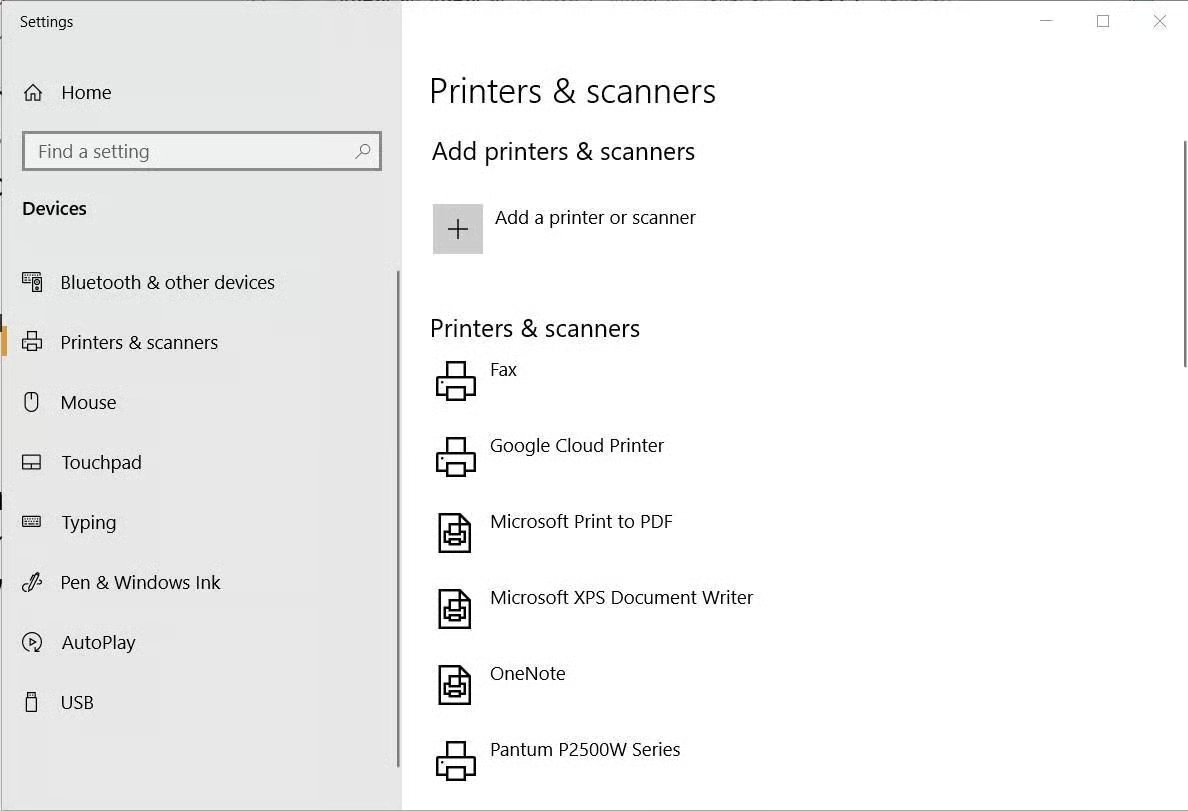
Table A provides a complete list of Windows 10 Settings URIs you can use as a reference. If you find yourself tweaking a specific setting over and over, it might save you some precious time to remember how to get to that particular configuration screen quickly, without wading through menus.
Table A
| Settings page | Commands |
|---|---|
| Settings main page | ms-settings: |
| System | |
| Display | ms-settings:display |
| Display -> Night light settings | ms-settings:nightlight |
| Sound | ms-settings:sound |
| Notifications & actions | ms-settings:notifications |
| Focus assist | ms-settings:quiethours |
| Power & sleep | ms-settings:powersleep |
| Battery | ms-settings:batterysaver |
| Battery -> Battery usage by app | ms-settings:batterysaver-usagedetails |
| Battery -> Battery saver settings | ms-settings:batterysaver-settings |
| Storage | ms-settings:storagesense |
| Storage -> Change where new content is saved | ms-settings:savelocations |
| Storage -> Change how we free up space | ms-settings:storagepolicies |
| Tablet mode | ms-settings:tabletmode |
| Multitasking | ms-settings:multitasking |
| Projecting to this PC | ms-settings:project |
| Shared experiences | ms-settings:crossdevice |
| Clipboard | ms-settings:clipboard |
| Remote Desktop | ms-settings:remotedesktop |
| About | ms-settings:about |
| Devices | |
| Bluetooth & other devices | ms-settings:bluetooth |
| Printers & scanners | ms-settings:printers |
| Mouse | ms-settings:mousetouchpad |
| Touchpad | ms-settings:devices-touchpad |
| Typing | ms-settings:typing |
| Pen & Windows Ink | ms-settings:pen |
| AutoPlay | ms-settings:autoplay |
| USB | ms-settings:usb |
| Phone | |
| Phone | ms-settings:mobile-devices |
| Network & internet | |
| Status | ms-settings:network-status |
| Cellular & SIM | ms-settings:network-cellular |
| Wi-Fi | ms-settings:network-wifi |
| Wi-Fi -> Manage known networks | ms-settings:network-wifisettings |
| Wi-Fi calling | ms-settings:network-wificalling |
| Ethernet | ms-settings:network-ethernet |
| Dial-up | ms-settings:network-dialup |
| VPN | ms-settings:network-vpn |
| Airplane mode | ms-settings:network-airplanemode |
| Mobile hotspot | ms-settings:network-mobilehotspot |
| Data usage | ms-settings:datausage |
| Proxy | ms-settings:network-proxy |
| Personalization | |
| Background | ms-settings:personalization-background |
| Colors | ms-settings:colors |
| Lock screen | ms-settings:lockscreen |
| Themes | ms-settings:themes |
| Fonts | ms-settings:fonts |
| Start | ms-settings:personalization-start |
| Taskbar | ms-settings:taskbar |
| Apps | |
| Apps & features | ms-settings:appsfeatures |
| Apps & features -> Manage optional features | ms-settings:optionalfeatures |
| Default apps | ms-settings:defaultapps |
| Offline maps | ms-settings:maps |
| Apps for websites | ms-settings:appsforwebsites |
| Video playback | ms-settings:videoplayback |
| Startup | ms-settings:startupapps |
| Accounts | |
| Your info | ms-settings:yourinfo |
| Email & app accounts | ms-settings:emailandaccounts |
| Sign-in options | ms-settings:signinoptions |
| Access work or school | ms-settings:workplace |
| Family & other people | ms-settings:otherusers |
| Sync your settings | ms-settings:sync |
| Time & language | |
| Date & time | ms-settings:dateandtime |
| Region & language | ms-settings:regionlanguage |
| Speech | ms-settings:speech |
| Gaming | |
| Game bar | ms-settings:gaming-gamebar |
| Game DVR | ms-settings:gaming-gamedvr |
| Broadcasting | ms-settings:gaming-broadcasting |
| Game Mode | ms-settings:gaming-gamemode |
| TruePlay | ms-settings:gaming-trueplay |
| Xbox networking | ms-settings:gaming-xboxnetworking |
| Ease of Access | |
| Display | ms-settings:easeofaccess-display |
| Magnifier | ms-settings:easeofaccess-magnifier |
| Color filters | ms-settings:easeofaccess-colorfilter |
| High contrast | ms-settings:easeofaccess-highcontrast |
| Narrator | ms-settings:easeofaccess-narrator |
| Audio | ms-settings:easeofaccess-audio |
| Closed captions | ms-settings:easeofaccess-closedcaptioning |
| Speech | ms-settings:easeofaccess-speechrecognition |
| Keyboard | ms-settings:easeofaccess-keyboard |
| Mouse | ms-settings:easeofaccess-mouse |
| Eye control | ms-settings:easeofaccess-eyegaze |
| Other options | ms-settings:easeofaccess-otheroptions |
| Cortana | |
| Talk to Cortana | ms-settings:cortana |
| Permissions & history | ms-settings:cortana-permissions |
| Notifications | ms-settings:cortana-notifications |
| More details | ms-settings:cortana-moredetails |
| Privacy | |
| General | ms-settings:privacy-general |
| Speech, inking, & typing | ms-settings:privacy-speechtyping |
| Diagnostics & feedback | ms-settings:privacy-feedback |
| Activity History | ms-settings:privacy-activityhistory |
| Location | ms-settings:privacy-location |
| Camera | ms-settings:privacy-webcam |
| Microphone | ms-settings:privacy-microphone |
| Notifications | ms-settings:privacy-notifications |
| Account info | ms-settings:privacy-accountinfo |
| Contacts | ms-settings:privacy-contacts |
| Calendar | ms-settings:privacy-calendar |
| Call history | ms-settings:privacy-callhistory |
| ms-settings:privacy-email | |
| Tasks | ms-settings:privacy-tasks |
| Messaging | ms-settings:privacy-messaging |
| Radios | ms-settings:privacy-radios |
| Other devices | ms-settings:privacy-customdevices |
| Background apps | ms-settings:privacy-backgroundapps |
| App diagnostics | ms-settings:privacy-appdiagnostics |
| Automatic file downloads | ms-settings:privacy-automaticfiledownloads |
| Documents | ms-settings:privacy-documents |
| Pictures | ms-settings:privacy-pictures |
| Videos | ms-settings:privacy-videos |
| File system | ms-settings:privacy-broadfilesystemaccess |
| Update & security | |
| Windows Update | ms-settings:windowsupdate |
| Windows Update -> Check for updates | ms-settings:windowsupdate-action |
| Windows Update -> Update history | ms-settings:windowsupdate-history |
| Windows Update -> Restart options | ms-settings:windowsupdate-restartoptions |
| Windows Update -> Advanced options | ms-settings:windowsupdate-options |
| Windows Security / Defender | ms-settings:windowsdefender |
| Backup | ms-settings:backup |
| Troubleshoot | ms-settings:troubleshoot |
| Recovery | ms-settings:recovery |
| Activation | ms-settings:activation |
| Find My Device | ms-settings:findmydevice |
| For developers | ms-settings:developers |
| Windows Insider Program | ms-settings:windowsinsider |
| Mixed reality | |
| Audio and speech | ms-settings:holographic-audio |