



Practically from the beginning, navigating commands in Microsoft Windows has been made easier by the inclusion of keyboard shortcut combinations. For some people, these shortcuts are often faster than using the mouse and the GUI. However, for some tasks, an even more efficient method for commanding Windows 10 is available—speech recognition and the power of vocal commands.
Must-read Windows coverage
- CrowdStrike Outage Disrupts Microsoft Systems Worldwide
- 10 Best Project Management Software for Windows in 2024
- Windows 10 Extended Security Updates Promised for Small Businesses and Home Users
- Securing Windows Policy
SEE: Windows 10: Lists of vocal commands for speech recognition and dictation (free PDF) (TechRepublic)
The list of potentially useful vocal commands for the Windows 10 speech recognition feature is considerable. Recognized commands range from simple tasks like opening applications to more complex jobs like editing documents. While it is not likely a user will remember all the various commands, it is possible that more than a few vocal commands will be useful enough to become a standard part of their Windows 10 tool kit.
Vocal commands for speech recognition and dictation in Windows
Activating speech recognition and dictation features in Microsoft Windows 10 requires a visit to several configuration screens, the first of which is shown in Figure A.
Figure A
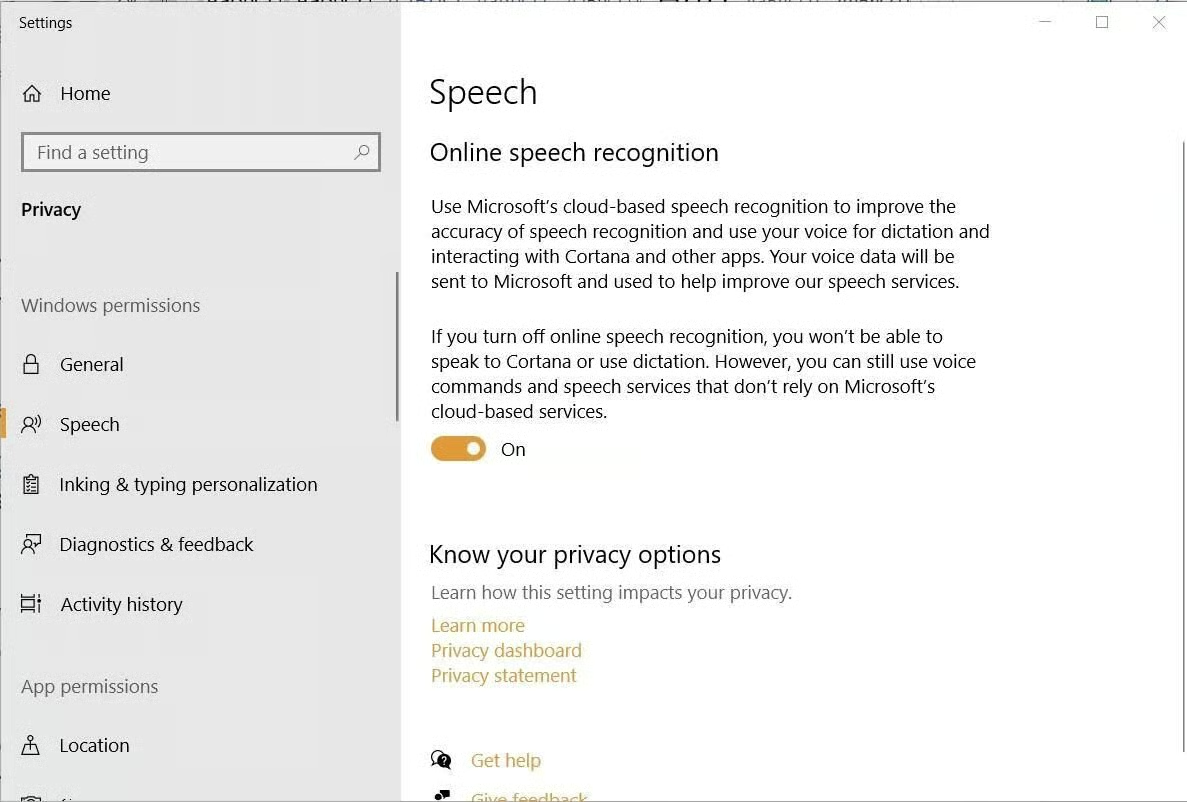
Once the feature is active in Windows 10, you may reach the speech recognition interface by using the keyboard shortcut combination of Windows Key + H. Of course, your system microphone will also have to be active.
SEE: TechRepublic Premium editorial calendar: IT policies, checklists, toolkits, and research for download (TechRepublic Premium)
Table A provides a list of common speech recognition commands in Windows 10. Note, you can also get help from the system at any time by asking, “What can I say?” If a word or phrase is shown in bold, it is an example that can be replaced with similar words to get the result you want.
Table A—Common speech recognition commands in Windows 10
| To do this | Say this |
|---|---|
| Open Start | Start |
| Open Cortana | Press Windows C |
| Open Search | Press Windows S |
| Perform an action in an app | Right-click; press Windows Z; press Ctrl B |
| Select an item by its name | File; Start; View |
| Select an item or icon | Click Recycle Bin; click Computer; click file name |
| Double-click an item | Double-click Recycle Bin; double-click Computer; double-click file name |
| Switch to an open app | Switch to Paint; switch to WordPad; switch to program name; switch application |
| Scroll in one direction | Scroll up; scroll down; scroll left; scroll right |
| Insert a new paragraph or new line in a document | New paragraph; new line |
| Select a word in a document | Select word |
| Select a word and start to correct it | Correct word |
| Select and delete specific words | Delete word |
| Show a list of applicable commands | What can I say? |
| Update the list of speech commands that are currently available | Refresh speech commands |
| Turn on listening mode | Start listening |
| Turn off listening mode | Stop listening |
| Move the Speech Recognition microphone bar | Move speech recognition |
| Minimize the microphone bar | Minimize speech recognition |
Table B provides a list of common dictation commands in Windows 10. If a word or phrase is shown in bold, it is an example that can be replaced with similar words to get the result you want. To insert punctuation while dictating a document, simple say the word. For example, “comma” will insert a comma, etc.
Table B—Common dictation commands in Windows 10
| To do this | Say this |
|---|---|
| Insert a new line in the document | New line |
| Insert a new paragraph in the document | New paragraph |
| Insert a tab | Tab |
| Insert the literal word (for example, insert the word “comma” instead of the punctuation mark) | Literal word |
| Insert the numeral form of a number (for examples, insert 3 instead of the word three) | Numeral number |
| Put the cursor before a specific word | Go to word |
| Put the cursor after a specific word | Go after word |
| Don’t insert a space before the next word | No space |
| Go to the start of the current sentence | Go to start of sentence |
| Go to the start of the current paragraph | Go to start of paragraph |
| Go to the start of the current document | Go to start of document |
| Go to the end of the current sentence | Go to end of sentence |
| Go to the end of the current paragraph | Go to end of paragraph |
| Go to the end of the current document | Go to end of document |
| Select a word in the current document | Select word |
| Select a word range in the current document | Select word range; select word through word |
| Select all text in the current document | Select all |
| Select a number of words before the location of the cursor | Select previous 20 words; select previous 10 words |
| Select a number of words after the location of the cursor | Select next 20 words; select next 10 words |
| Select the last text you dictated | Select that |
| Clear the selection on the screen | Clear selection |
| Capitalize the first letter of a word | Caps word |
| Capitalize all the letters of a word | All caps word |
| Make all the letters in a word lowercase | No caps word |
| Change the next number of words to uppercase | Change next 10 words to uppercase |
| Change the next number of words to lowercase | Change next 10 words to lowercase |
| Delete the previous sentence | Delete previous sentence |
| Delete the next sentence | Delete next sentence |
| Delete the previous paragraph | Delete previous paragraph |
| Delete the next paragraph | Delete next paragraph |
| Delete the selected or last dictated text | Delete that |
Table C provides a list of common Windows 10 application and Windows commands. If a word or phrase is shown in bold, it is an example that can be replaced with similar words to get the result you want.
Table C—Common Windows 10 application and windows commands (Microsoft)
| To do this | Say this |
|---|---|
| Select an item by its name | File; Start; View |
| Select an item or icon | Click Recycle Bin; click Computer; click file name |
| Double-click an item | Double-click Computer; double-click Recycle Bin; double-click folder name |
| Right-click an item | Right-click Computer; right-click Recycle Bin; right-click folder name |
| Minimize all windows to show your desktop | Show desktop |
| Select something if you don’t know what it’s called | Show numbers (Numbers will appear on the screen for every item in the active window. Say an item’s corresponding number to select it.) |
| Select a numbered item | 19 OK; 5 OK |
| Double-click a numbered item | Double-click 19; double-click 5 |
| Right-click a numbered item | Right-click 19; right-click 5 |
| Open an app | Open Paint; open WordPad; open app name |
| Switch to an open app | Switch to Paint; switch to WordPad; switch to app name; switch application |
| Close an app | Close that; close Paint; close Documents |
| Minimize | Minimize that; minimize Paint; minimize Documents |
| Maximize | Maximize that; maximize Paint; maximize Documents |
| Restore | Restore that; restore Paint; restore Documents |
| Cut | Cut that; Cut |
| Copy | Copy that; Copy |
| Paste | Paste |
| Delete | Delete that; Delete |
| Undo | Undo that; Scratch that; Undo |
| Scroll in one direction | Scroll up; Scroll down; Scroll right; Scroll left |
| Scroll an exact distance in pages | Scroll down 2 pages; Scroll up 10 pages |
| Scroll an exact distance in other units | Scroll up 5; Scroll down 7 |
| Go to a field in a form or app | Go to field name; Go to Subject; Go to Address; Go to cc |