This gallery is also available as a TechRepublic article and PDF download.
Over the years, each new version of Excel has introduced some nifty features. However, buried within Excel are lots of cool features that too few users have discovered. If you (or your users) perform certain tasks every time you use Excel, you’ll want to make sure you’re taking advantage of these time-saving shortcuts.
Version note
These tips apply to Excel 2003, although most of them work the same way in earlier versions of Excel.
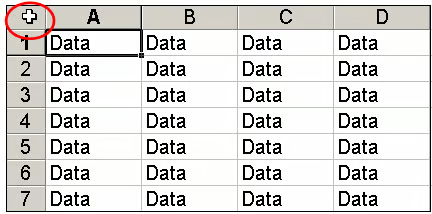
The next time you need to select an entire worksheet, click the little gray box in the top-left corner of the sheet. It’s the space above the row numbers and to the left of the column letters.
Why would you want to select the entire worksheet? Let’s count some of the ways:
Once you learn to use the Format Painter tool (which looks like a little yellow paintbrush on the Standard toolbar), you’ll wonder how you ever got by without it. To format a cell (or cells), select a cell (or cells) that are formatted the way you like and click Format Painter. Then, click and drag to apply that formatting to another cell (or range of cells).
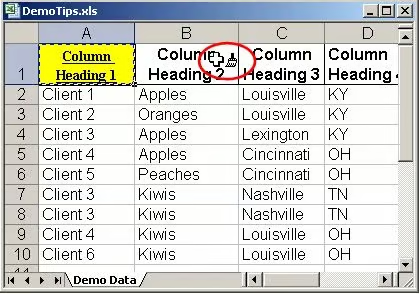
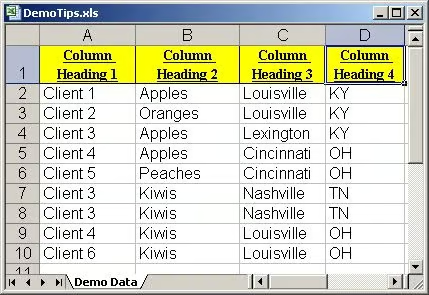
Here’s an example to illustrate how Format Painter works. Start by manually formatting cell A1 as Times New Roman 9, bold, and underlined and then use the Fill Color tool to make the background of the cell yellow. With cell A1 selected, click Format Painter. You’ll notice that Excel displays a paintbrush next to the cursor.
While that paintbrush is visible, all you have to do is click (and/or drag) to apply all of the attributes from cell A1 to any other cells. This shortcut saves time because you don’t have to manually reapply the font and other attributes to other cells.
Note: By default, Format Painter is a “once and out” function. That is, if you click once on Format Painter and then paint a cell or range of cells, Excel will stop painting as soon as you release the mouse. If you want to paint a number of different cells or range of cells, double-click on Format Painter. The paint brush function will then continue painting cells as long as you keep clicking. To turn off Format Painter after you’ve double-clicked it, press [Esc].
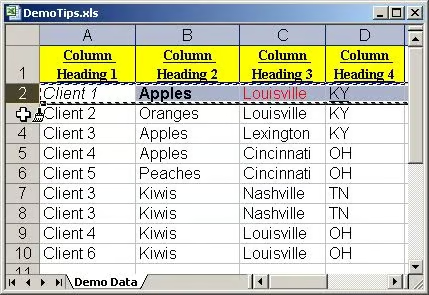
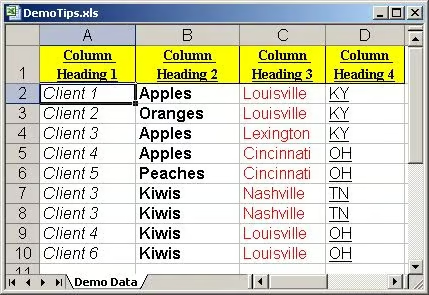
The cool thing about Format Painter is that it isn’t limited to picking up the attributes of one cell at a time. For example, suppose you have applied different formatting attributes to two or more cells in the same row or column, as we did in Row 2.
Using Format Painter, you can transfer all those formats to the rows above.
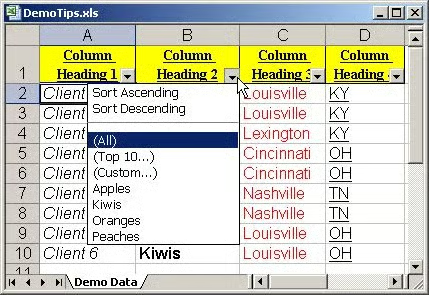
If you support Excel users, AutoFilter will be a surefire hit, both for beginners and for experienced users who haven’t seen this feature in action before. Go to Data | AutoFilter, and Excel will add drop-down arrows to the first cell in each column of data in your sheet. When you click on any of those drop-down arrows, Excel will display a list of the unique entries in that column.
Just select the desired entry to limit the display of records.
AutoFilter notes
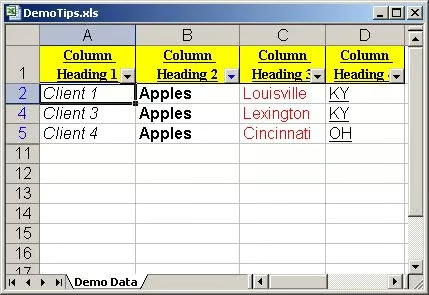
If you look closely, you’ll notice that the color of the drop-down arrow changes from black to blue whenever you make a selection. That change in color is a visual cue to remind you that your list has been filtered by a selection from that column.
As you probably guessed, you aren’t limited to filtering the list on just one column. You can click on the drop-down for two or more columns, and Excel will display only those records that match your selections in each column.
There are two ways to turn off AutoFilter. One is to click on each of the columns where you made an AutoFilter selection and choose the (All) option. The other way is to go to Data | Filter and select Show All.
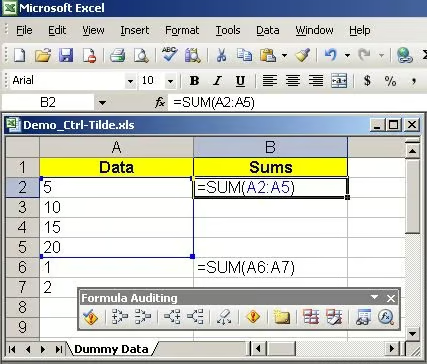
If you wanted to troubleshoot a formula in early versions of Excel, you had to click on the cell containing the formula and look at the formula itself in the Formula Bar. In more recent versions of Excel, you can display your formulas by pressing [Ctrl]~. If you want to view the dependent cells for a particular cell, select it before you press [Ctrl]~.
To demonstrate this feature, open any worksheet that contains at least one formula and press [Ctrl]~. Our sample sheet contains two SUM functions. This screenshot shows our sheet after we selected cell B2 and then pressed [Ctrl]~. Notice that when you press this key combination, Excel 2003 also displays the Formula Auditing toolbar.
When you support or teach Excel users, one of the most common questions you’ll hear is, “I’ve got a list with a thousand entries in a column, and many of those are duplicates. How do I generate a list of the unique entries in that column?”
\r\nThere are at least two good answers to that question. The first answer is to refer back to Tip 3 above: Go to Data | AutoFilter and then click the drop-down list for the column in question. Doing so lets you see the list of unique entries onscreen. If seeing the list satisfies your need, you’re finished.
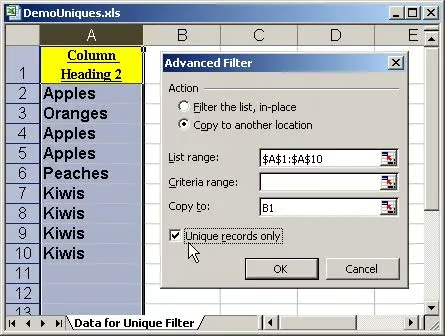
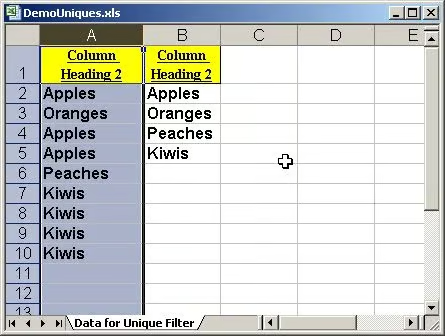
\r\nThe second answer is the one to use if you want to have a list of the unique entries you can copy and paste elsewhere. To generate such a list, you’ll use Data | Filter | Advanced Filter. To demonstrate how it works, we’ll use the data in Column B from the sample sheet we introduced in the second screenshot.\r\n
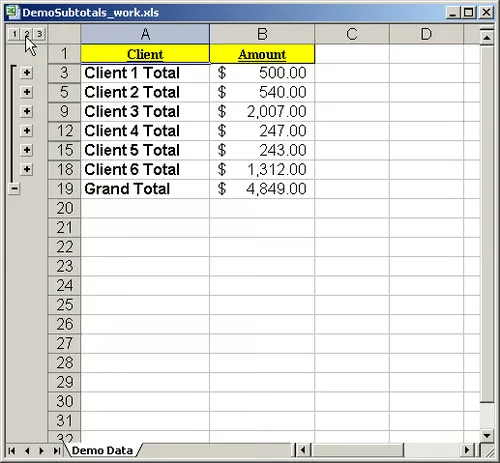
The Subtotals feature is yet another life-changing tool for those who haven’t seen it before. In the old days, before the Subtotals feature was introduced, here’s how you generated subtotals: You’d sort your data, manually insert blank rows between the groups of data you wanted to subtotal, and manually insert the appropriate Sum functions. Many Excel users still take that approach when they want to generate subtotals, which is regrettable, since it provides many opportunities for errors.
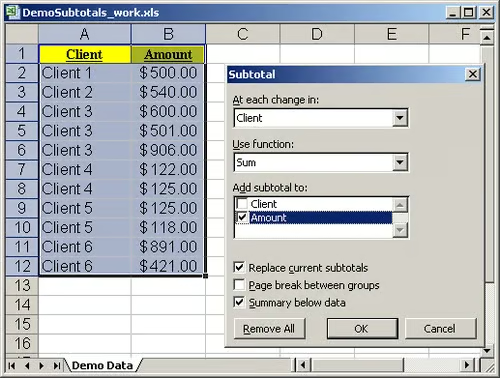
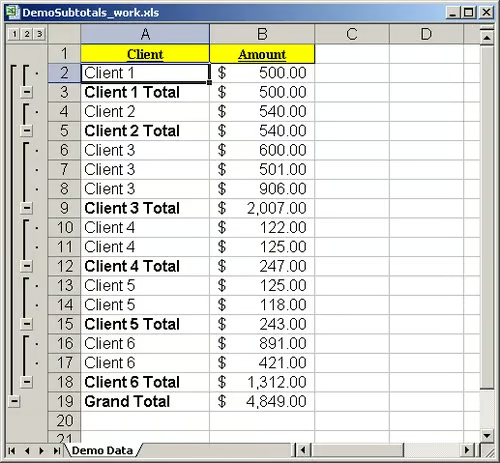
Here’s a quick walk-through of how to use Excel’s Subtotals feature: