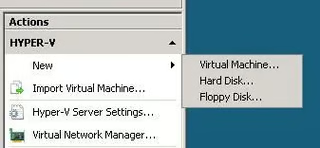
Click Actions|Virtual machine to begin creating a new vm within Hyper-V.
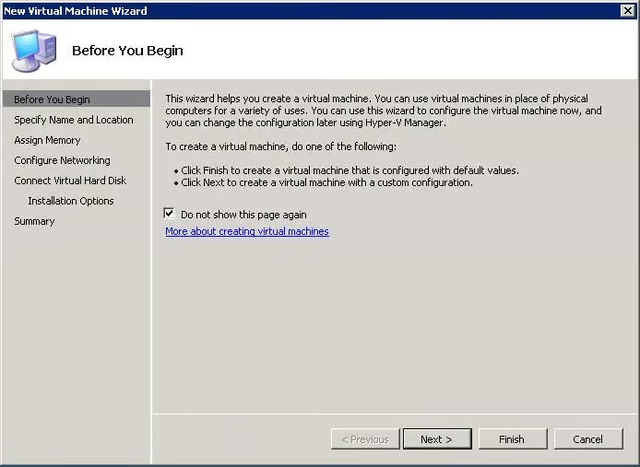
This window gives you an explanation of how to create a vm. You can choose not to show it again.
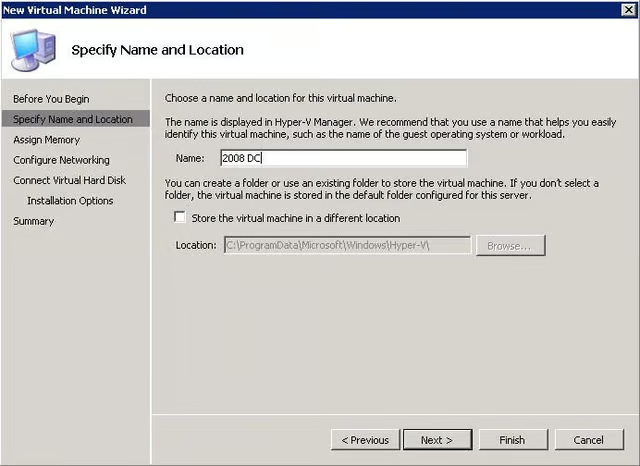
On this window, you can create the name of your vm and specify the default location or a new location.
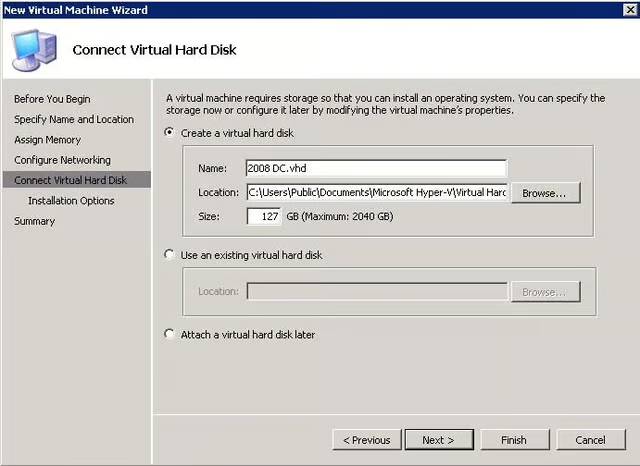
On this window, you can size your virtual disk and choose its location.
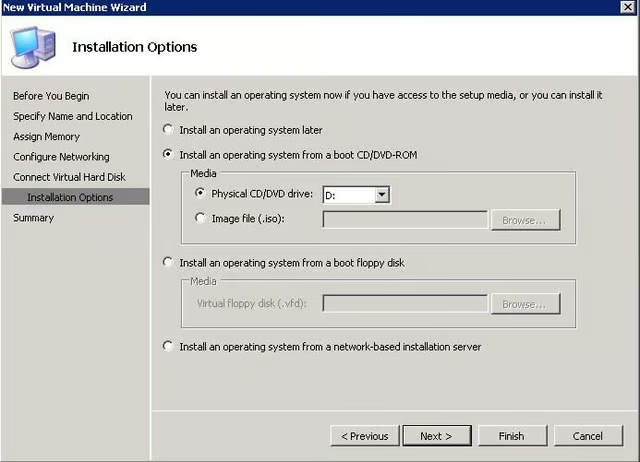
On this window, you can specify whether you want to load the media from and image file or a physical DVD/CD.
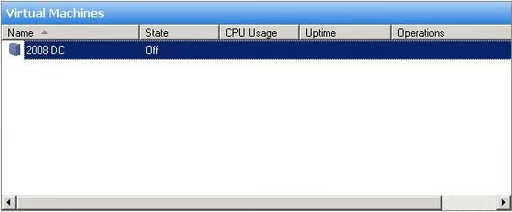
This is the area in Hyper-V Manager that will display all of your virtual machines.
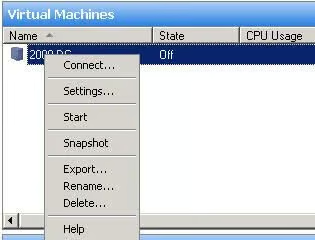
Right-click on your vm and choose Connect.
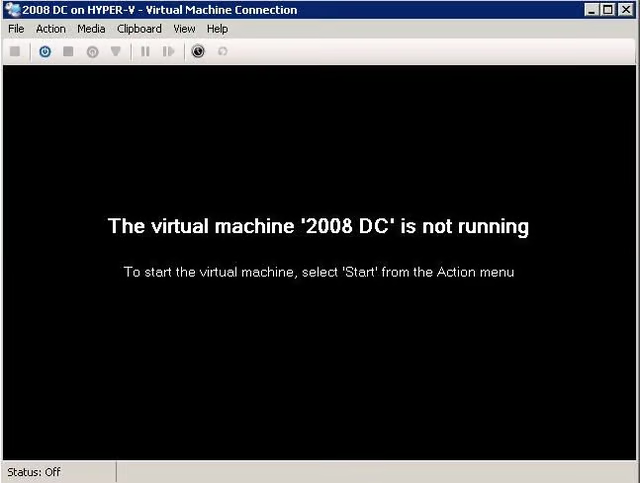
Click Action | Start.
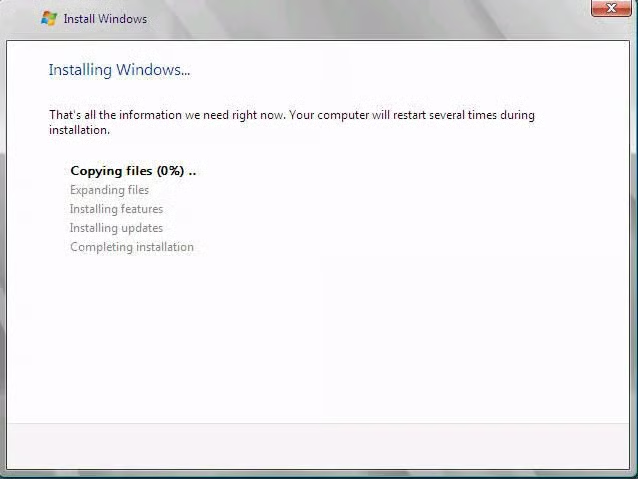
On this window, I am creating a vm of Windows Server 2008.
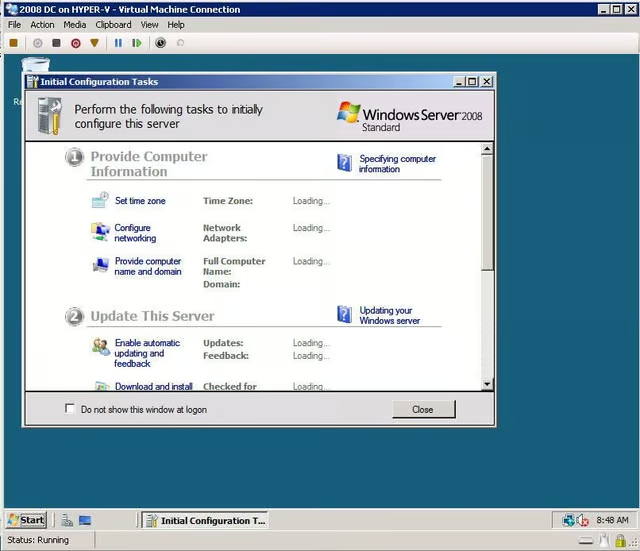
A fully functioning vm of Windows Server 2008.
Steven S. Warren lives in sunny Florida. His articles and blogs have appeared on websites such as CIO Update, DevX, TechRepublic, SearchTechTarget, Datamation and DatabaseJournal. With more than 15 years of experience writing about…