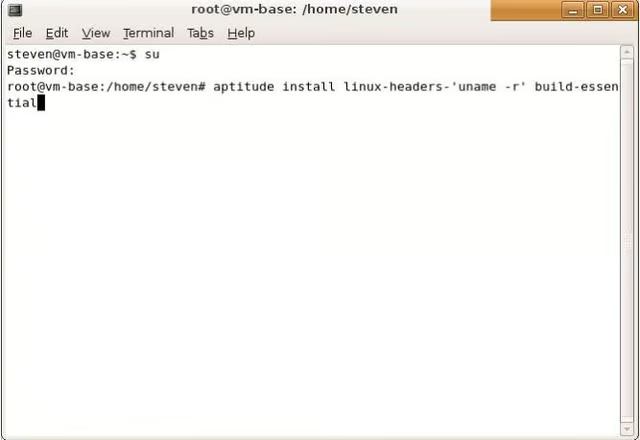
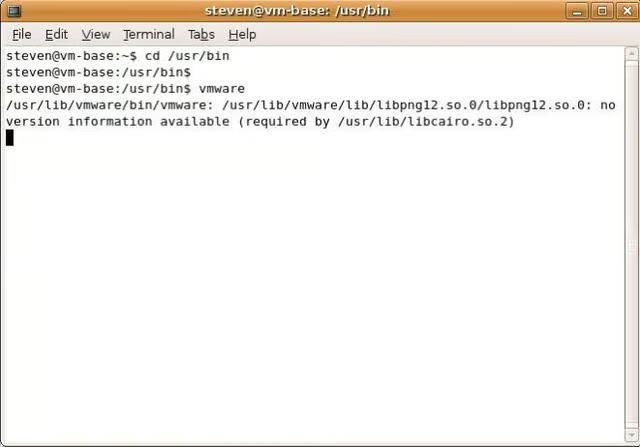
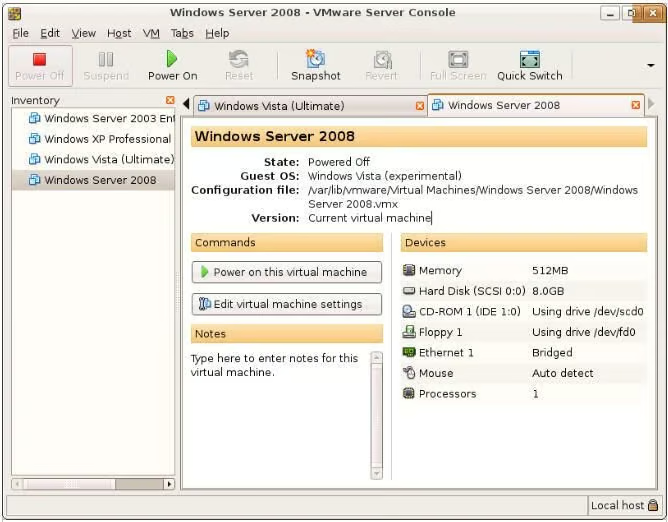
Prepare Environment 1
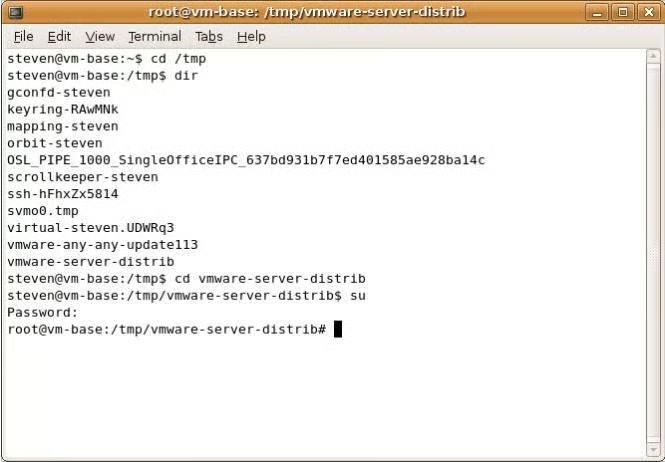
You can prepare the environment by typing the following commands in the Terminal window:
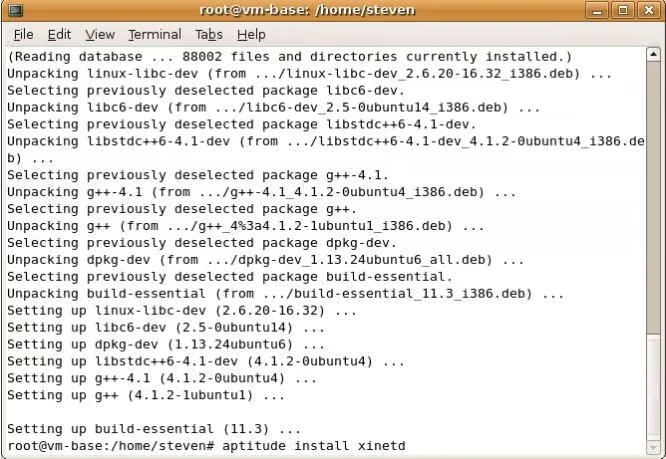
Prepare Environment 2
Install VMware
Now it is time to download VMware Server or VMware Workstation. After downloading the software, you will also need to download a patch that allows VMware Server to run on Ubuntu Linux.
Note: Do not forget to register for VMware Server. It requires a serial number that you will only receive if you register. Registration is a small price to pay for free software.
Let’s install VMware Server by right-clicking on the tar file and extracting the file to the /tmp directory. Simply right-click on the tar file and choose Open with Archive Manager. Next, click Extract and in Places choose Files | System | Tmp. The VMware-server-distrib folder will extract to the /tmp directory.
Now let’s open the Terminal and browse to the tmp directory and to the VMware-server-distrib directory. Once inside the VMware-server-distrib directory, type the following:
Patch VMware for Linux
You will be asked a series of questions. Please accept the defaults. Toward the end of the installation you will be asked the following question:
“Before running VMware Server for the first time, you need to configure it by invoking the following command: /usr/bin/VMware-config.pl. Do you want this program to invoke the command for you now?” Yes is the default but you should type No as we have to load a patch first that will allow VMware Server to work on Ubuntu Linux.
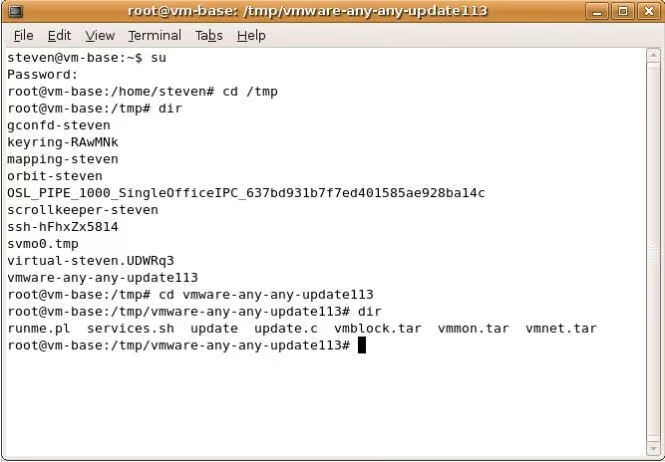
Follow the same procedures above to extract the contents of the patch to the /tmp directory. After you copy the update to the /tmp directory, open the terminal and login as super user and browse to the VMware-any-any-update113 folder.