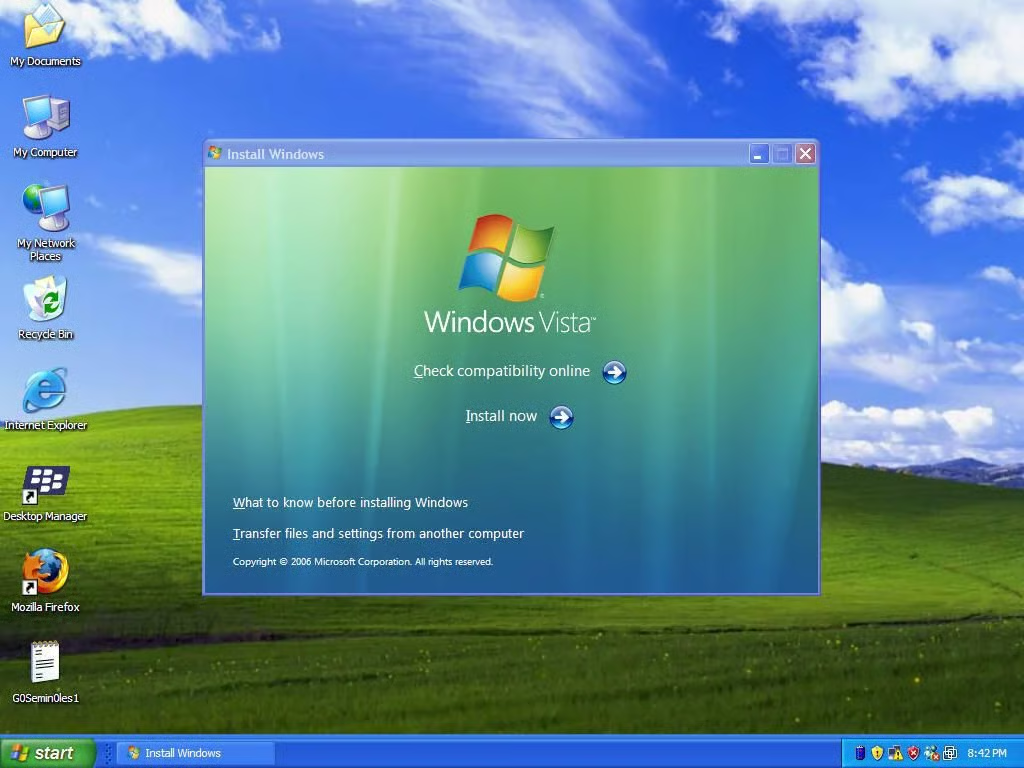
After placing the upgrade DVD in your drive, you are presented the Welcome Screen.
Please Check Compatibility online to make sure you qualify for an upgrade. Note: If you are using a laptop, the upgrade requires you to plug in your machine.
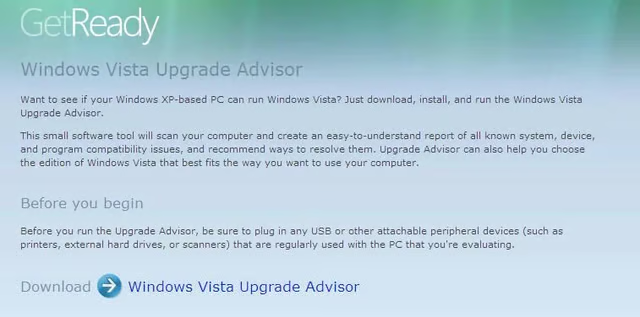
Windows Vista Upgrade Advisor
I encourage you to run the upgrade advisor prior to starting your upgrade. It will tell you what is and isn’t compatible.
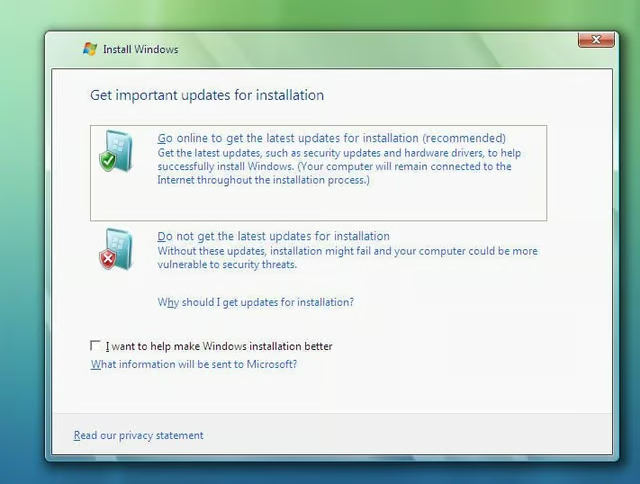
Update your Installation Files
On this window,you can go online to grab any updates you might need for a clean upgrade. If you do not have Internet access, you can still proceed.
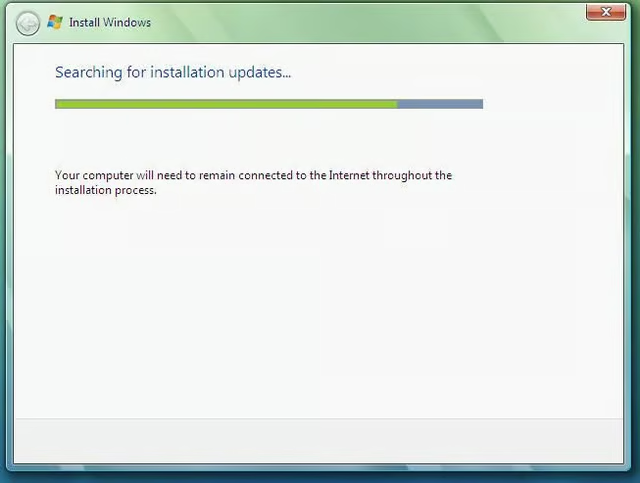
Please Wait!
Grab a cup of coffee 🙂
Did you finish that coffee yet?
Have another sip.
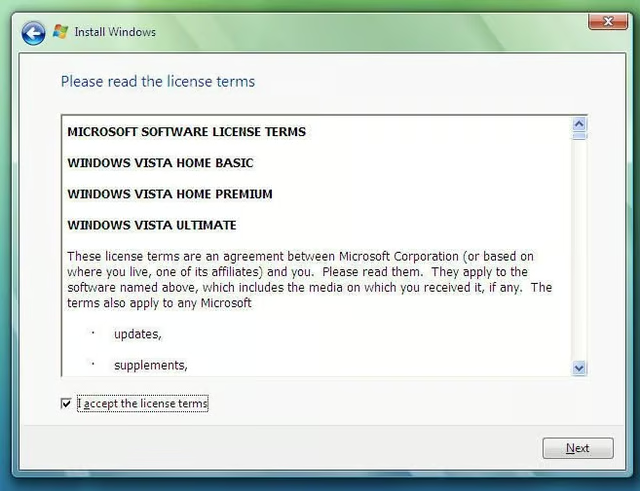
Please read the license terms
You know the drill.
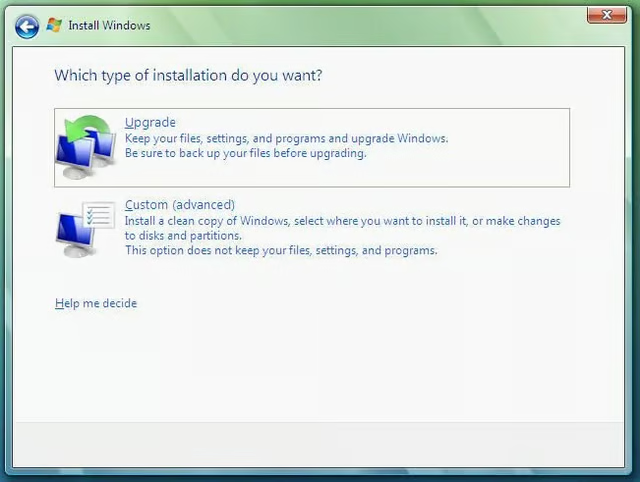
Upgrade or Clean Installation of Windows Vista
You can choose to do a new install or upgrade. If you are upgrading and you find that the option is disabled, then you need more disk space.
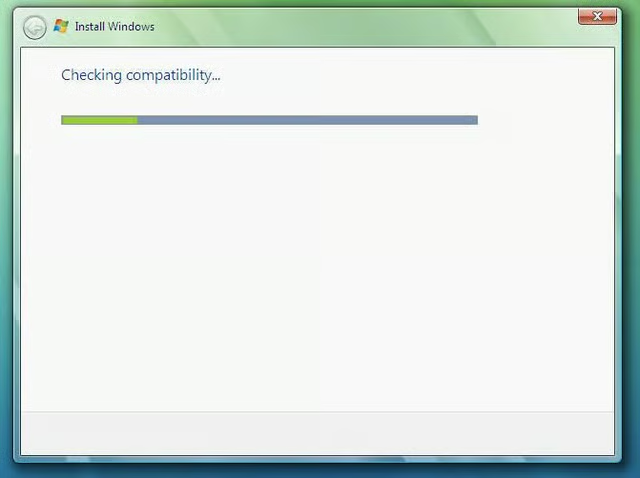
Compatibility Check
The upgrade looks at the state of your current upgrade and makes sure you meet requirements.
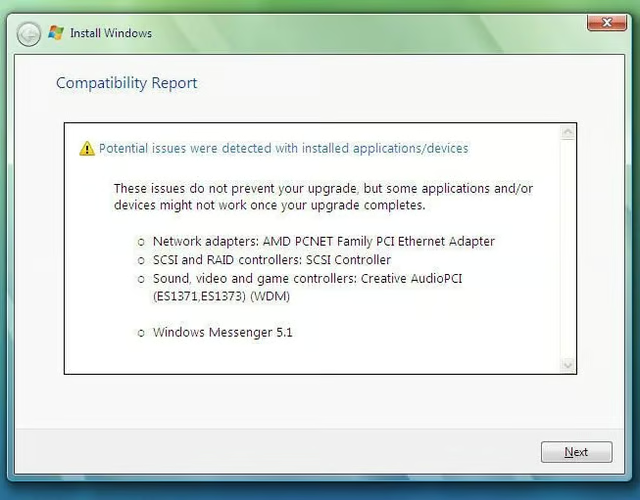
Compatibility Report
This reports shows you any potential issues that may impede your upgrade.
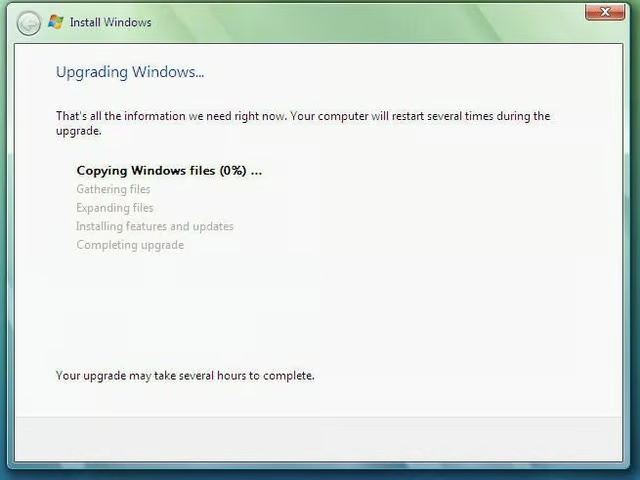
Sit back and relax!
You can probably check email and make some phone calls.
Upgrade progress bar
Did I mention to grab another cup of java?
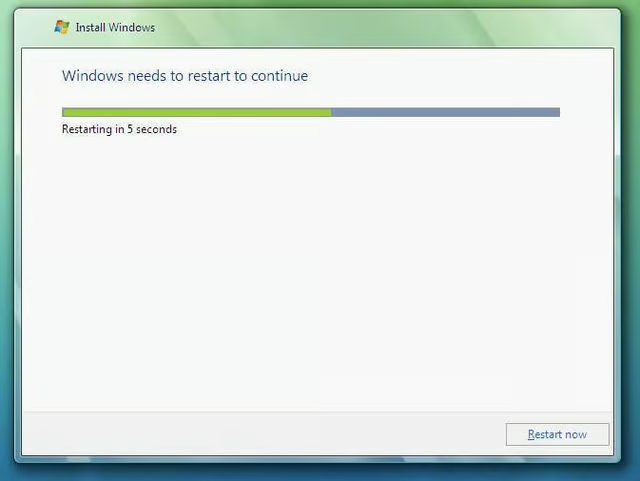
Automatic Restart
Vista will automatically restart during the upgrade process.
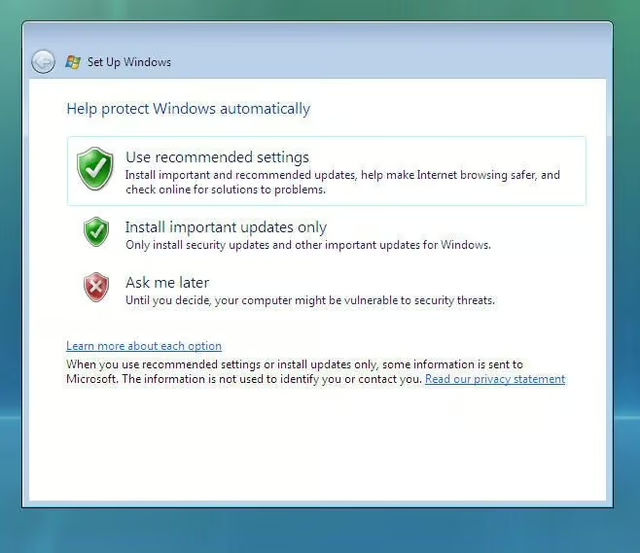
Use the Recommended Settings
This screen allows your installation to be up-to-date from the beginning.
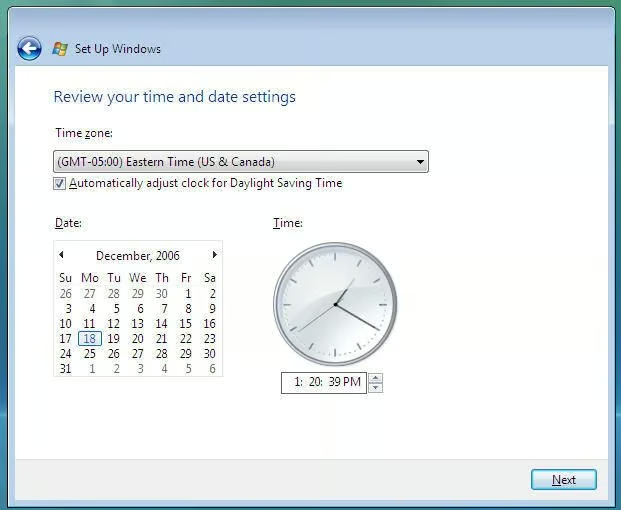
Time Zone
On this screen, you simply choose the correct time zone for your particular installation of Windows Vista.
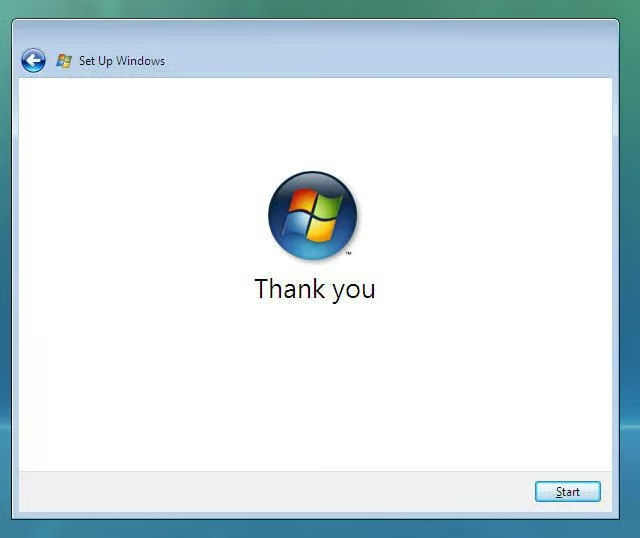
Thank you!
Nice graphic.
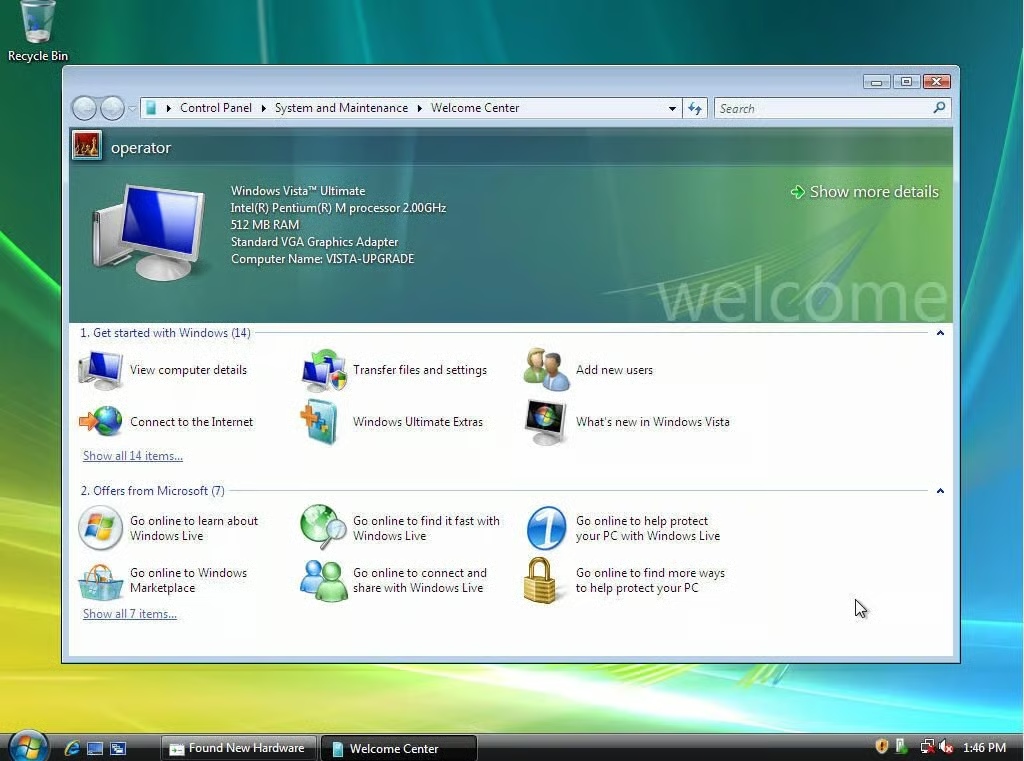
Welcome to Windows Vista!
You have successfully upgraded Windows XP to Windows Vista. Happy Testing!
Steven S. Warren lives in sunny Florida. His articles and blogs have appeared on websites such as CIO Update, DevX, TechRepublic, SearchTechTarget, Datamation and DatabaseJournal. With more than 15 years of experience writing about…